
Collaborating with Other Teams via SharePoint
Overview:
This article walks through how to share specific matter documents with business teams in SharePoint without giving them access to the full matter in Cubed.
It's useful when you need procurement, finance, HR, or any non-legal team to review or input on a document without bringing them into the broader matter. Following this process keeps your documents under control, avoids version confusion from email chains, and preserves a clear audit trail of who reviewed what.
Key Steps:
1. Open the Matter and Go to the Documents Tab 0:18
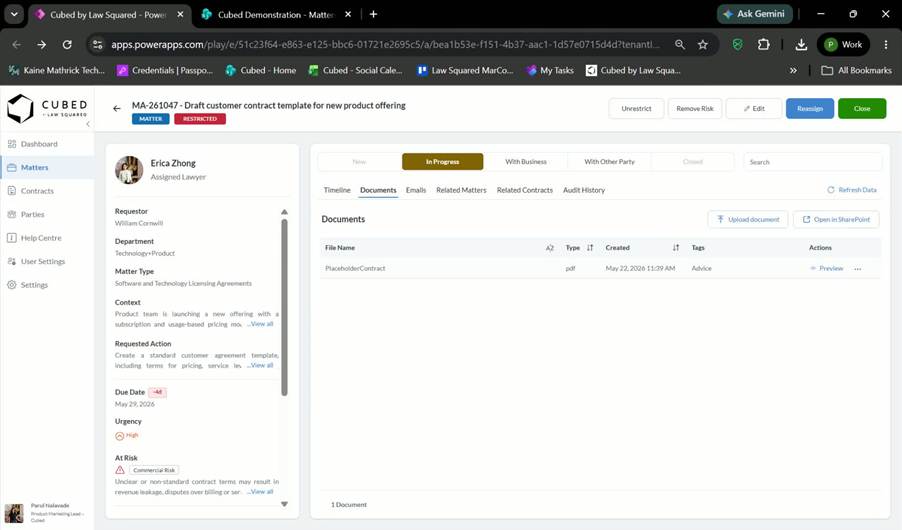
- Locate the relevant matter in SharePoint.
- Open the matter and select the Documents tab.
- Confirm you are working in the correct matter before sharing any files.
2. Open the Matter in SharePoint 0:34
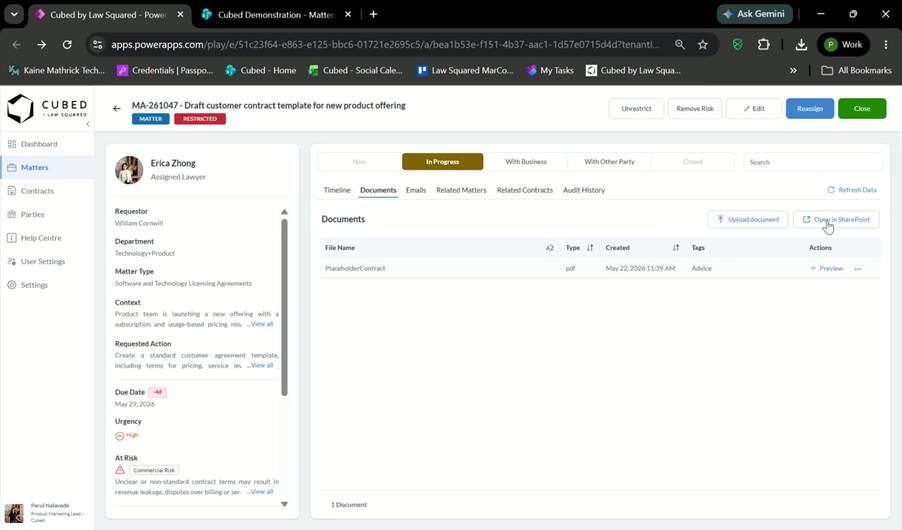
- From the Documents tab, open the matter in SharePoint.
- Use SharePoint to manage folders and files that will be shared externally to the legal team.
- Verify that you are in the correct document location before making changes.
3. Create a Dedicated Sharing Folder 0:48
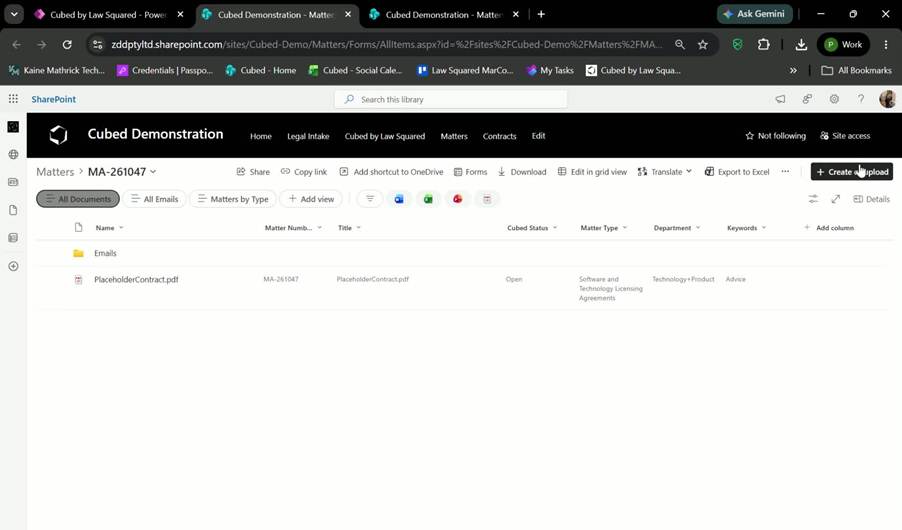
- Create a new folder specifically for the team that needs access.
- Name the folder clearly so its purpose is obvious (for example, a folder for procurement review).
- Keep shared documents separate from internal working files to avoid confusion.
4. Upload the Document for Review 0:48
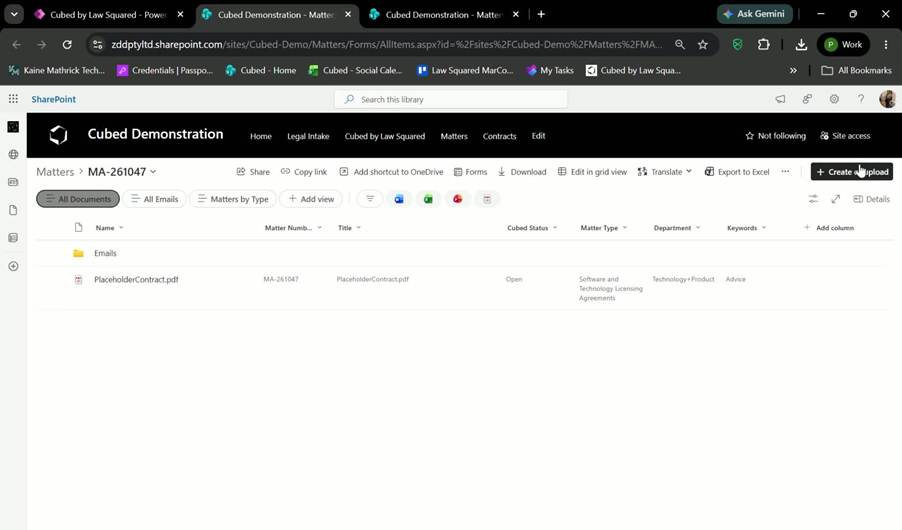
- Upload the contract or other document that the business team needs to review into the dedicated folder.
- Confirm the correct version of the file is uploaded.
- Check that the document is placed in the intended sharing folder, not the main matter folder.
5. Share the Folder with the Appropriate Team 1:15
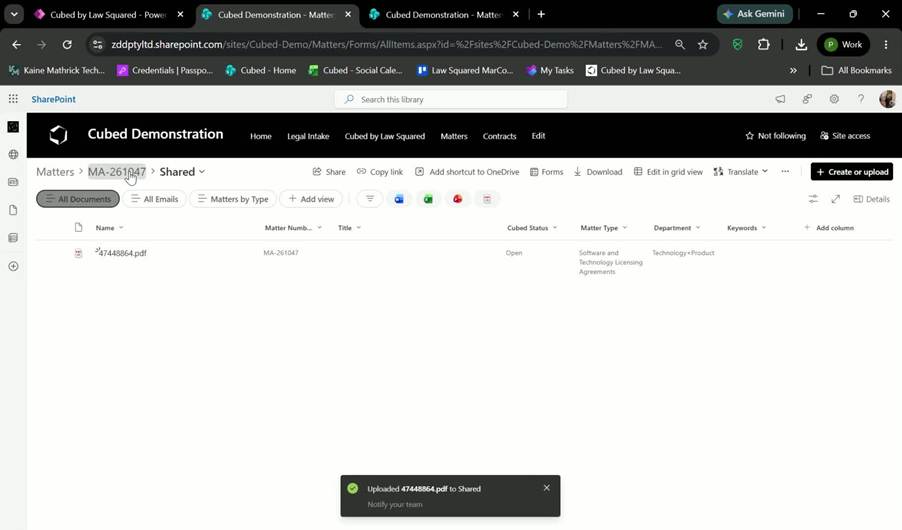
- Return to the sharing folder.
- Share the folder with the intended business team, such as procurement or marketing.
- Ensure the share is limited to only the documents needed for review.
6. Set the Correct Access Level 1:30
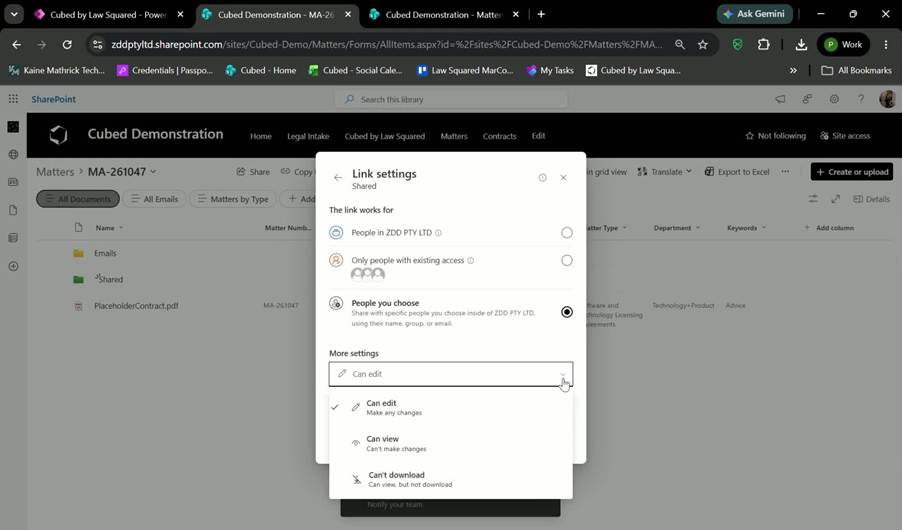
- Choose the appropriate permission level for the team:
- Edit access if they need to make changes.
- View only if they only need to review.
- View without download if you want them to review online but not save a local copy.
- Select the least permissive access level that still allows the team to complete their task.
7. Confirm Document Control and Review Tracking 1:30
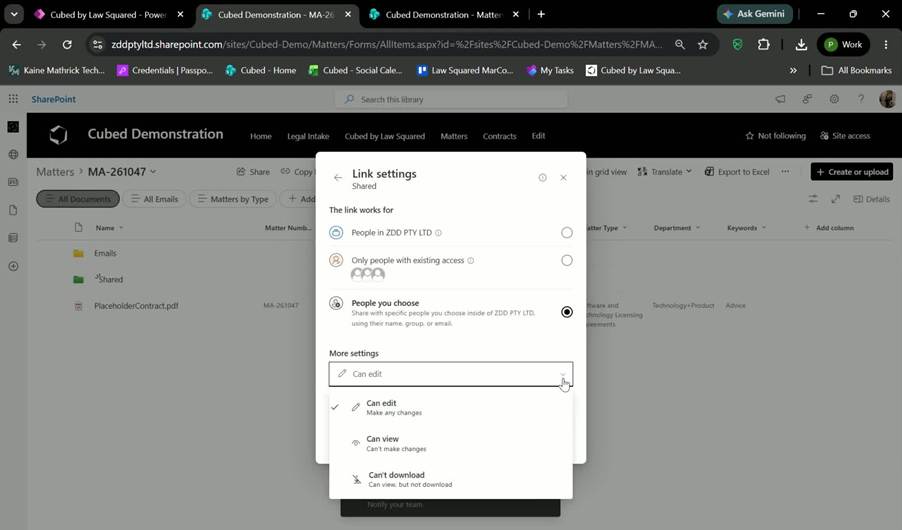
- Use SharePoint sharing to keep work in one place and reduce duplicate versions.
- Rely on SharePoint permissions to maintain control over who can access the document.
- Use the sharing activity as an audit trail to track who reviewed the file.
Cautionary Notes
- Do not share the full matter with business teams unless they truly need access.
- Double-check the folder and file before sharing to avoid exposing unrelated documents.
- Be careful when granting edit permissions; use them only when collaboration requires it.
- If the document is sensitive, consider view-only or view without download access to reduce risk.
- Make sure the correct version of the contract is uploaded before sharing to prevent review of outdated content.
Tips for Efficiency
- Create a standard folder naming convention for shared review folders.
- Use a dedicated folder for each team to keep reviews organized.
- Upload only the documents needed for the specific review request.
- Prefer view-only access when edits are not required.
- Keep all collaboration in SharePoint to avoid version sprawl and simplify tracking.
Link to Loom